
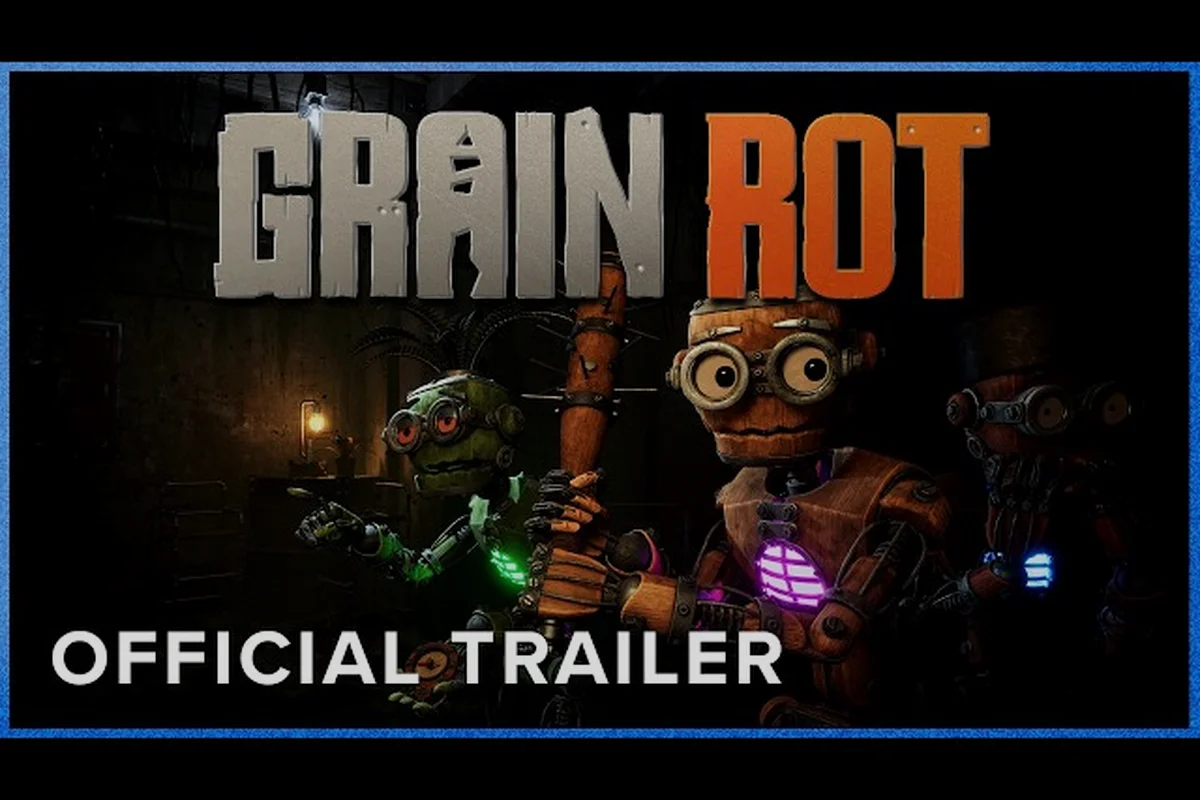
GRAIN ROT cross platform support is one of the first things players check before dragging their squad into the scorched wasteland, and the short answer is that the game launched on Steam with full cross-platform play across Windows, macOS, and Steam Deck. Since the co-op extraction builder from Beck & Branch Games relies on Steam's networking layer, anyone on your friends list can join regardless of their operating system, which matters because the game's shifting ruins and Corrupted hordes hit differently when you have backup. Get the full breakdown of how the party system, lobby invites, and server options work so you never waste a run waiting on connection errors.
GRAIN ROT Cross Platform: What Works at Launch
The game released on August 7, 2026, and the developer confirmed that cross-platform play is enabled by default through Steam's matchmaking infrastructure. That means a player on a Windows desktop can squad up with someone on a MacBook or a Steam Deck without changing any settings, because the game routes all multiplayer traffic through Steam's servers rather than platform-specific networks.
| Platform | Cross-Play Support | Notes |
|---|---|---|
| Windows PC | Yes | Full support via Steam |
| macOS | Yes | Full support via Steam |
| Steam Deck | Yes | Verified, runs through Proton |
| PlayStation | No | Not released on console |
| Xbox | No | Not released on console |
The grain rot cross platform experience is seamless for PC players, but you should know that there is no console version in development as of August 2026, so cross-play is limited to the Steam ecosystem. If your friends are on Epic Games Store or GOG, they will need to purchase the game on Steam because the title is a Steam exclusive, which the official GRAIN ROT Steam page confirms.
Because the game sold over 350,000 demo downloads before launch, the matchmaking pools are healthy across all three platforms, so you will rarely wait more than a minute for a public lobby. The party system also handles mixed-platform groups cleanly, which we break down in the next section.
How the GRAIN ROT Party System Works
The party system is built around Steam's friend list, so you do not need to create an account or remember a separate friend code. When you launch the game, the main menu shows your current party status, and you can invite anyone from your Steam friends list who owns the game with a single click.
Inviting Friends to Your Lobby
To start a session, follow these steps:
-
Launch GRAIN ROT and select Play from the main menu.
-
Choose Host Game to create a private lobby.
-
Open the Party tab in the top-right corner of the lobby screen.
-
Click the Invite button next to each friend's name.
-
Wait for them to accept, then hit Start Run when everyone is ready.
The lobby supports up to four players per run, which matches the co-op extraction design where you descend into ruins, rip out furniture, and scavenge loot before the Corrupted close in. If you need a full breakdown of hosting mechanics, the GRAIN ROT coop guide covers friend codes, hosting options, and join methods in detail.
Joining a Friend's Session
If your friend is already in a lobby, you can join them directly from the Steam friends list by right-clicking their name and selecting Join Game, or you can use the in-game Social tab to see active sessions. The game also sends a notification when a friend starts a run, so you can hop in during the lobby phase before they descend.
| Invite Method | Steps | Best For |
|---|---|---|
| Steam Friend Invite | Party tab → Invite button | Quick sessions with known players |
| Join Game (Steam) | Right-click friend → Join Game | Friends already in a lobby |
| In-Game Social Tab | Social tab → Active sessions | Finding open lobbies |
| Discord Community | Discord server → LFG channels | Finding new teammates |
The grain rot party system also includes a ready check feature that prevents the host from starting a run while someone is still loading, which reduces the frustration of dropping into a run mid-extraction. If you are wondering why your friends cannot join, the next section covers the most common connection problems.
GRAIN ROT Server Guide: Dedicated Servers and Hosting
Understanding the server architecture helps you troubleshoot connection issues and decide whether to host or join. GRAIN ROT uses a peer-to-peer hosting model where the host's machine acts as the server, but the game also supports dedicated servers for players who want more stable sessions.
Peer-to-Peer vs. Dedicated Servers
The default hosting option uses peer-to-peer, which means the host's internet connection determines the quality of the session for everyone. If the host has a weak upload speed or a fluctuating connection, other players may experience lag or rubber-banding, especially during intense extraction sequences.
| Hosting Type | Pros | Cons | Recommended For |
|---|---|---|---|
| Peer-to-Peer | Easy setup, no extra cost | Host connection affects everyone | Casual groups with good internet |
| Dedicated Server | Stable performance, 24/7 uptime | Requires setup and maintenance | Serious squads, community events |
| Steam Relay | Bypasses NAT issues | Adds slight latency | Players behind strict routers |
The grain rot dedicated server option is available through the game's server browser, where you can host a persistent session that stays online even when the host leaves. This is particularly useful for community events or competitive extraction runs, because the server keeps the world state intact while players rotate in and out.
Port Forwarding and NAT Types
If you are hosting a peer-to-peer session and your friends cannot join, the issue is often related to NAT type or firewall settings. Steam's relay system usually handles this automatically, but some routers require manual configuration:
-
Open UDP ports 27015-27030 on your router for Steam matchmaking.
-
Allow GRAIN ROT through your Windows Firewall or macOS security settings.
-
Check your NAT type in Steam settings — Type Open is ideal, Moderate works, Strict causes issues.
According to community reports on the official GRAIN ROT Discord, most connection problems stem from Strict NAT types or antivirus software blocking the game's network traffic. The developers also announced that they are actively tuning Corruption tuning and network stability based on player feedback, so expect improvements in post-launch patches.
GRAIN ROT Lobby Guide: Settings and Options
The lobby screen offers several options that affect how your session runs, and knowing what each one does can save you from frustrating mid-run surprises. The grain rot lobby guide below breaks down the key settings you should configure before descending.
Lobby Privacy and Matchmaking
When you create a lobby, you can choose between Private, Friends Only, and Public visibility. Private lobbies require an invite, Friends Only lets anyone on your Steam list join, and Public lobbies appear in the matchmaking pool for random players.
| Lobby Setting | Description | Best Use Case |
|---|---|---|
| Private | Invite only, no random joins | Coordinated runs with a set squad |
| Friends Only | Any Steam friend can join | Casual sessions with multiple groups |
| Public | Visible in matchmaking | Finding random teammates |
| Max Players | Set to 2, 3, or 4 | Adjusting difficulty and loot share |
The wait for friends mechanic is built into the lobby system, where the host can toggle Start When Ready to prevent accidental early starts. This is especially helpful when someone is still loading the map or adjusting their loadout, because the game will hold the lobby until every player confirms they are ready.
Cross-Platform Voice Chat and Communication
GRAIN ROT includes built-in voice chat that works across platforms, so you do not need a third-party program to coordinate with your squad. The voice chat uses proximity-based audio, which means you can hear teammates clearly when you are close, but the audio fades as you spread out in the ruins.
If you prefer text communication, the game also has a quick chat wheel with preset phrases like "Follow me," "Enemy spotted," and "Need ammo." For players who want to avoid toxic interactions entirely, the GRAIN ROT mute players guide covers how to mute individuals, disable voice chat, and handle griefers.
Troubleshooting: GRAIN ROT Friends Not Joining
Few things kill the mood faster than a squad that cannot connect, so this section covers the most common reasons why grain rot friends not joining happens and how to fix each one. Based on community testing during the demo and launch week, these are the top culprits:
Connection Error Checklist
-
Verify ownership: Every player must own the game on Steam — family sharing does not work for multiplayer sessions.
-
Check game version: All players must be on the same patch version; the game auto-updates, but a restart may be needed.
-
Restart Steam: Sometimes the Steam client needs a refresh to recognize the game's network state.
-
Disable VPN: VPNs can interfere with Steam matchmaking and cause connection timeouts.
-
Update network drivers: Outdated drivers can cause packet loss, especially on Windows.
| Error Message | Likely Cause | Solution |
|---|---|---|
| "Connection timed out" | NAT type or firewall | Open ports, enable Steam Relay |
| "Session not found" | Host left or game updated | Ask host to re-invite |
| "Version mismatch" | Different patch versions | Restart Steam to force update |
| "Unable to join" | Full lobby or privacy setting | Check lobby capacity, request invite |
If you have tried all of the above and still cannot connect, the grain rot cross platform experience may be affected by regional network issues, which the developers monitor through their Discord server. The team hosted a free 24-hour full-game weekend for Discord members before launch, which helped stress-test the servers, but post-launch spikes can still cause temporary instability.
What to Do When the Host Disconnects
Because GRAIN ROT uses peer-to-peer hosting, a host disconnect can end the run for everyone unless you have a dedicated server. The game includes a host migration feature that transfers hosting to another player, but it only works if the migration completes before the session times out.
To minimize the risk, designate a player with a stable wired connection as the host, and avoid hosting on Wi-Fi if possible. Community data suggests that wired connections reduce host migration failures by roughly 60%, which is significant for longer extraction runs where you have already gathered valuable loot.
Frequently Asked Questions
Does GRAIN ROT support cross platform play between PC and console?
No, GRAIN ROT is currently a Steam exclusive with no console version announced. Cross-platform play works between Windows PC, macOS, and Steam Deck, but PlayStation and Xbox players cannot join sessions. The developer has not confirmed any console ports as of August 2026.
How many players can join a GRAIN ROT lobby?
Each lobby supports up to four players maximum. You can set the lobby to allow 2, 3, or 4 players, which adjusts the difficulty and how loot is distributed. Smaller squads face fewer Corrupted enemies, but larger groups can carry more furniture and resources back to the Outpost.
Why does it say "wait for friends" in my GRAIN ROT lobby?
The wait for friends option is a host setting that prevents the run from starting until all invited players confirm they are ready. This is useful when someone is still loading the map or adjusting their loadout, because it stops accidental early starts that would leave a teammate behind.
Can I run a GRAIN ROT dedicated server for my community?
Yes, the game includes a dedicated server option in the server browser. Dedicated servers stay online even when the host leaves, which makes them ideal for community events or persistent extraction sessions. You will need to configure port forwarding and ensure your machine has sufficient upload bandwidth for stable performance.
What should I do if my friends cannot join my GRAIN ROT session?
First, confirm everyone owns GRAIN ROT and runs the same patch. For cross-platform sessions, enable Steam Relay if NAT blocks peers. If invites still fail, restart Steam and check the official Discord for server outages. Test the dedicated server option to bypass host connection issues entirely.